VPN Access
Most connections to the UCHC HPC system can be made using two-factor authentication through DUO. However, some modes of access may require users to be connected to a VPN using the Cisco Secure Client. There are two VPNs that can be used to connect to the HPC system, depending on the type of device you are using.
Non-UConn Health IT Managed Devices
If you are using a device that is not managed by UConn Health IT, you will need to use the CAM VPN.
Enrollment
There are three steps that must be completed before you can connect to the CAM VPN.
1. Request VPN Access
To request to be added to the VPN group, submit a Request Ticket
2. Enroll in DUO
Once your request to be added to the VPN group is approved, you will receive an email regarding DUO enrollment from “DUO Security”. Follow the instructions to enroll in DUO. You will need to have a device with DUO installed to complete this step. See here for more information on DUO and how to install it.
3. Install the Cisco Secure Client
Once you have enrolled in DUO, you can download the Cisco Secure Client from here.
Enter you CAM username and password when prompted. You should then receive a DUO authentication request. Approve the request to access the download link and follow the instructions to install the client. If you do not receive the DUO authentication request, ensure that you have completed DUO enrollment and that you have a device with DUO installed.
Connecting
Once you have completed the enrollment steps above, you can connect to the CAM VPN.
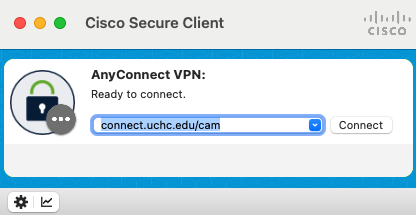
- Open the Cisco Secure Client application on your computer.
- In the address field, enter
connect.uchc.edu/cam. Click on the “Connect” button. - When prompted, enter your CAM username and password to login.
UConn Health IT managed devices
For HPC users who use UConn Health IT managed (UCH domain member) devices, the Cisco Secure Client will already be installed.
- Open the Cisco Secure Client application on your computer.
- In the address field, enter
connect.uchc.edu. Click on the “Connect” button. - When prompted, enter your UConn Health Net ID and password to login.
Help
If you have any issues with the CAM VPN apart from requesting access and DUO enrollment, please contact UConn Health IT Service Desk through uconnprod@service-now.com or by phone at 860-679-4400.
We do not have administrative access to the VPN to be able to assist with VPN issues.
Check carefully that you have completed all of the enrollment steps. Skipping DUO enrollment is a common issue that prevents users from being able to download or connect to the CAM VPN.